Turn Lost Jobs Into Smart Data: Introducing Job Outcome Details
Every lost quote or cancelled job carries valuable business intelligence. If a job falls through, simply moving it to a closed folder leaves your team in the dark. To optimise your rental company’s conversions, you need to understand precisely why those enquiries didn’t proceed.
Our brand-new Job Outcome Details functionality enables your business to build standardised, automated data collection forms triggered by specific closed job statuses, such as Cancelled or Not interested. Collecting this structured feedback helps you monitor trends, audit losses and ultimately improve your sales performance.
Keep reading for a straightforward, step-by-step guide on how to set this functionality up in your HireHop account. 👇
Step 1: Configuring Your Job Outcome Custom Fields
Before your team can start logging feedback, you need to configure your questionnaire templates within your system settings and map them to the relevant job milestones.
1. Navigate to Company Settings
Go to Company Settings and click on the Job outcome tab.
2. Add a question
Click the + New button inside the Configure job outcome details window.
3. Define your parameters
Complete the form setup fields:
- Type: Select your preferred data input format. Use Text for long-form manager notes, Select for a custom dropdown list, or Checkboxes for quick yes/no queries.
- Question Label: Type the question prompt your team will see (e.g., “Why was the job cancelled?” or “Cancellation Notes”).
- Field ID: Assign a unique shorthand identifier for database reporting (e.g., SELECT-1 or TEXT-6).
- Required Option: Check this box if you want to make answering this question mandatory before a user can save the job status.
- Status: Select the specific closed job status that triggers this question form. For example, selecting Cancelled means these fields will only appear when a project transitions to that exact state.
- Dropdown Lists: If you chose a Select type field, use the sub-table below to add your predefined response choices (such as Too Expensive or Unforeseen Circumstances).
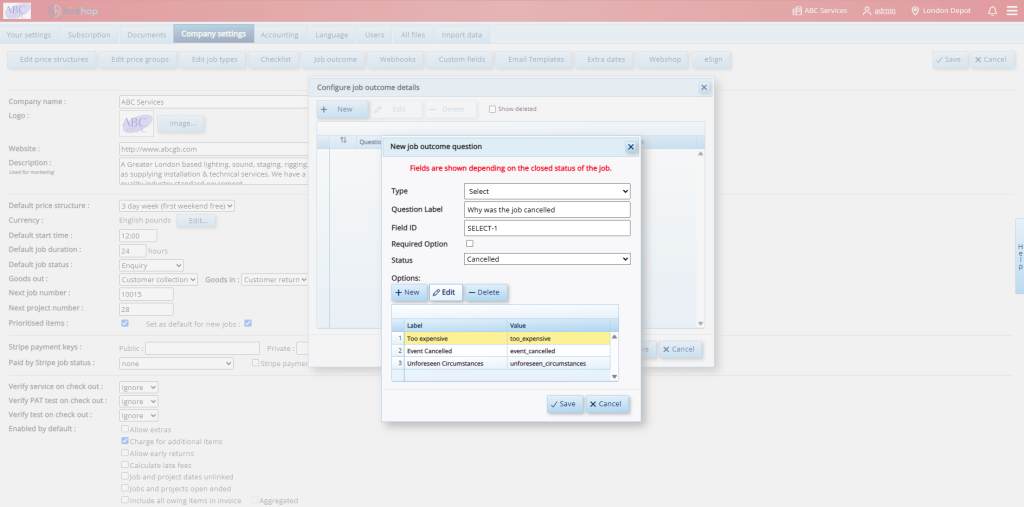
HireHop company settings dashboard showing the Job Outcome configuration window to add custom questionnaire fields.
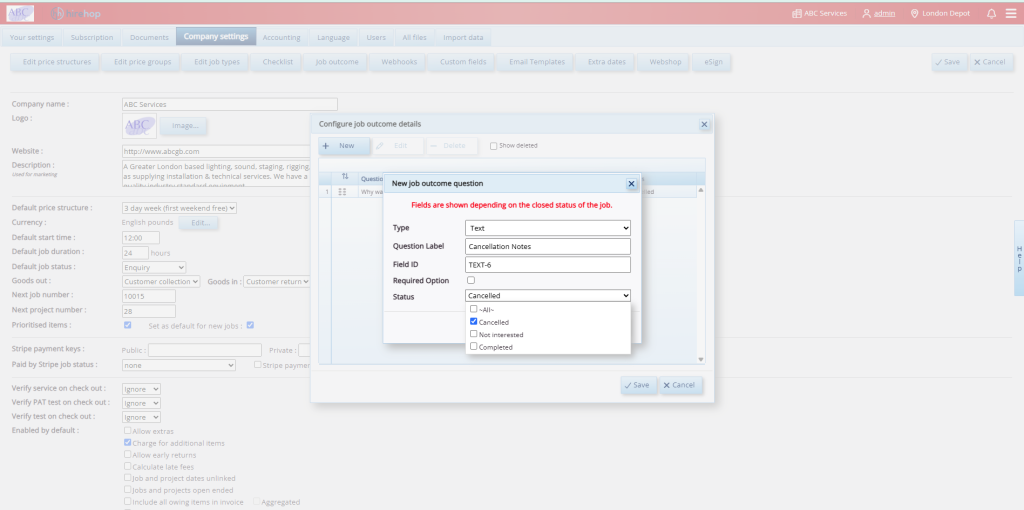
Configuring a dropdown select question menu in HireHop settings with custom cancellation reason labels like Too Expensive.
4. Save
Click Save to lock in your template rule.
Step 2: Logging Outcome Feedback on a Job Page
Once configured, HireHop dynamically prompts your team for data entry the moment a job’s status changes.
1. Update job status
Open the target job page and change its status field to a closed state like Not interested or Cancelled.
2. Complete the pop-up form
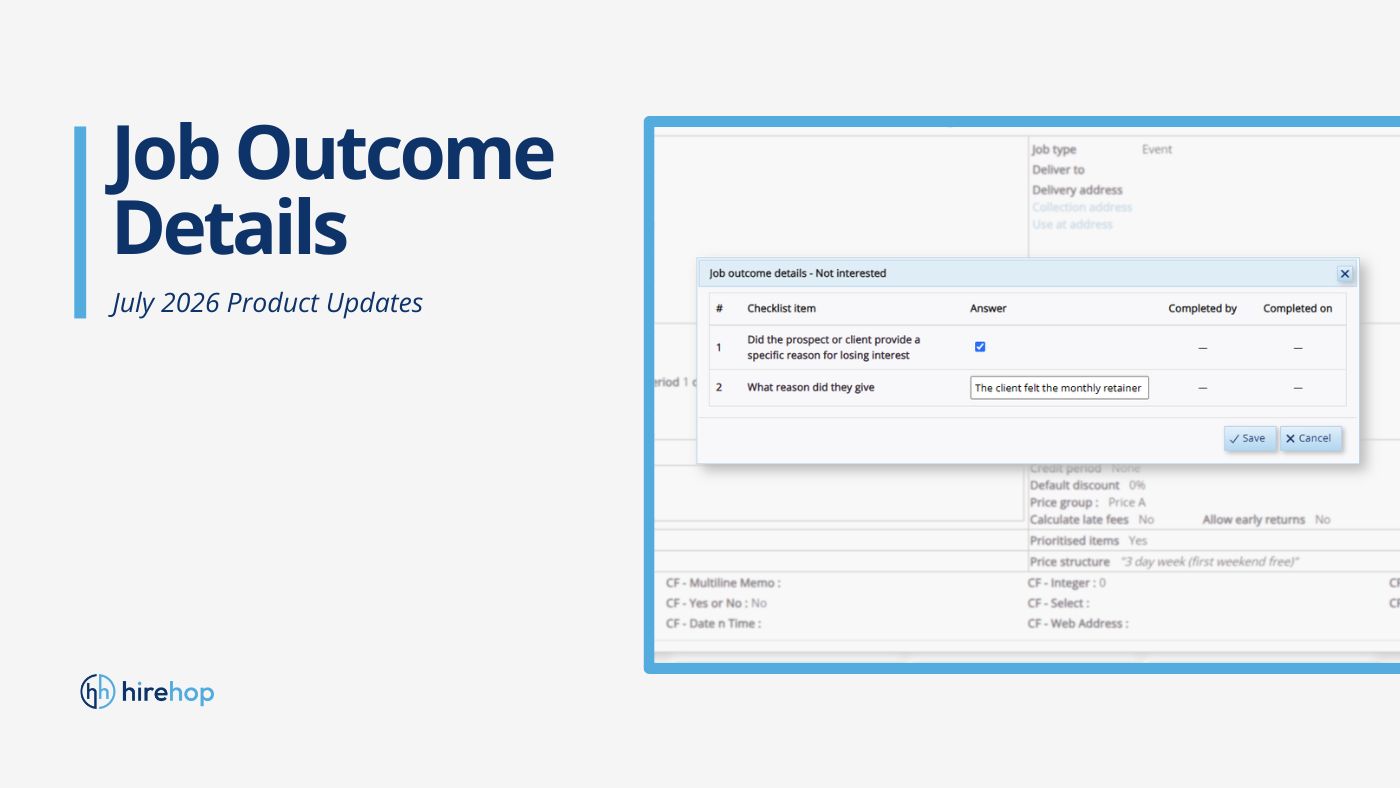
A dedicated Job outcome details pop-up window will overlay your workspace automatically, showing only the questions linked to that specific status.
3. Log the feedback
Fill in the responses based on the direct feedback received from your client. For instance, if a prospect loses interest because of pricing, check the box for “Did the prospect or client provide a specific reason for losing interest” and note down the details in the text field (e.g., “The client felt the monthly retainer was too high…”).
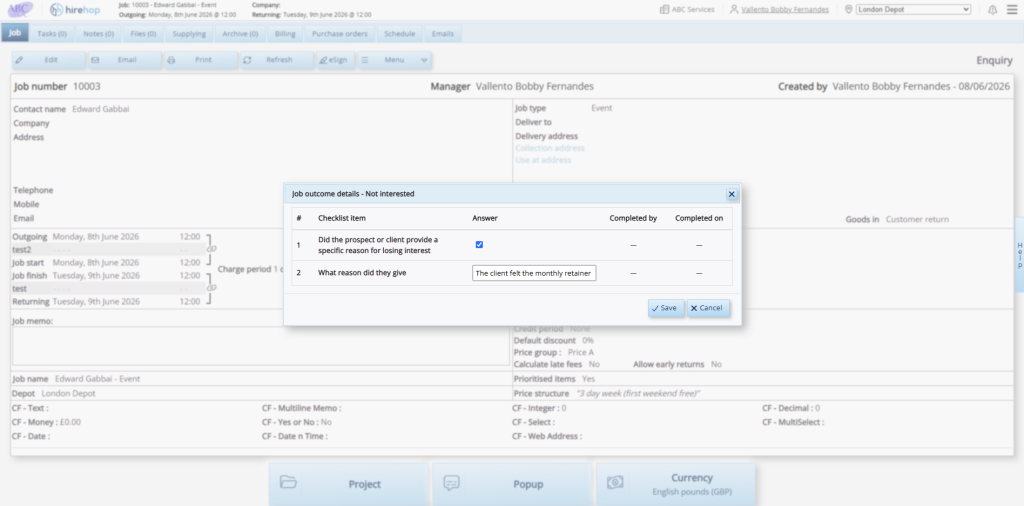
A popup form overlay on a HireHop job page prompting the user to complete checklist items for a Not Interested status update.
4. Finalise
Click Save to commit the answers directly to the job file.
Step 3: Analysing & Exporting Job Outcome Data
Captured data isn’t just hidden away in individual logs: it aggregates globally to give your management team a clear bird’s-eye view of your business’s operational performance.
Immediate visibility
When viewing any completed file, a dedicated Job outcome details banner remains permanently anchored at the very top of the job profile, giving anyone instant context on why the project stopped.
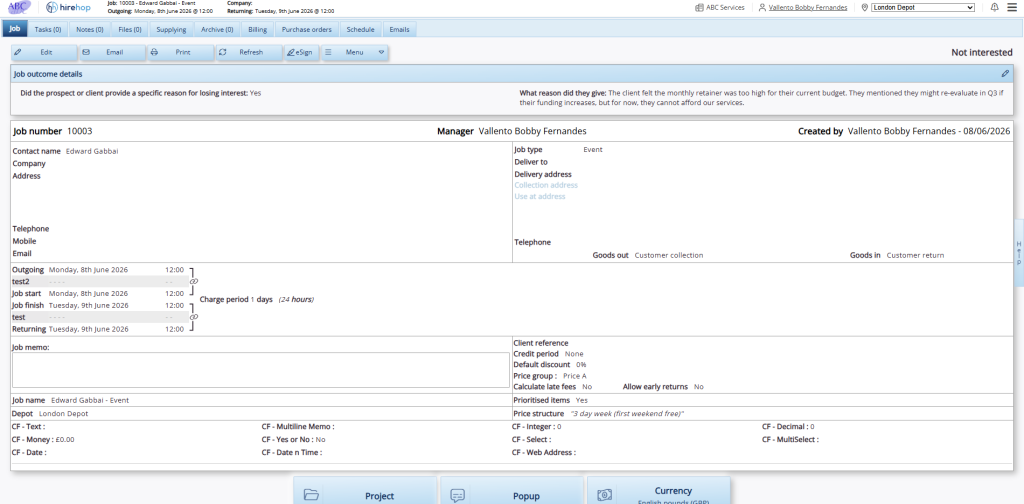
A completed HireHop job profile page displaying the dedicated Job Outcome Details banner anchored clearly at the top of the workspace.
Run global reports
Under Home > Reports, head over to the Job outcome details reporting section to filter historical trends across specific date ranges, statuses or depots.
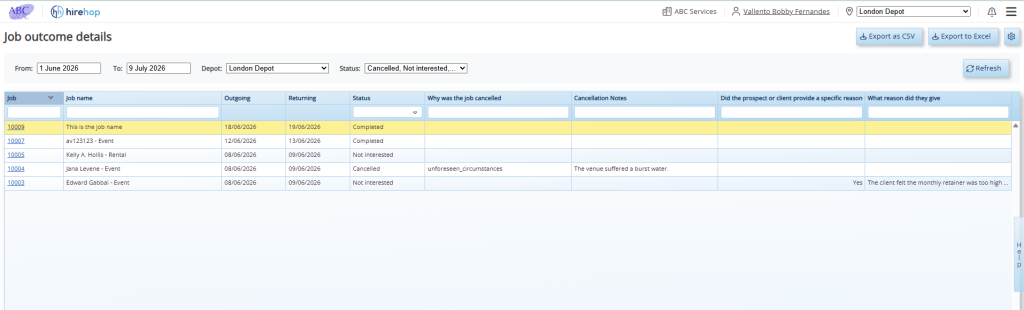
The global Job Outcome Details report screen in HireHop displaying a searchable spreadsheet grid of historical cancellation trends with CSV and Excel export options.
Secure export
Click Export as CSV or Export to Excel in the top-right corner of the interface to hand your structured sales data off to your finance or business development teams for deep-dive analysis.
Ready to stop guessing why jobs fall through?
If you’re already a HireHop user, log in to your account today and head over to Company Settings to set up your automated feedback loops.
New to HireHop and want to see how our intelligent workflows can scale your rental operations? Book a free demo today or start your free trial to see it in action!