Secure Your HireHop Account with Two-Factor Authentication (2FA)
Data security is a top priority for modern rental and hire operations. To ensure your company data, financial records and client manifests remain completely airtight, HireHop now supports native Two-Factor Authentication (2FA).
Users can quickly secure their individual login credentials, while system Administrators have total authority to enforce or reset 2FA parameters across the entire team. Follow our simple step-by-step guide below to activate extra security on your account.
Table of Contents
- Part 1: How to Set Up 2FA on Your Individual Account
- Part 2: Enforced Activation & Subsequent Logins
- Part 3: Administrator Controls (Enforcing and Resetting Team 2FA)
Part 1: How to Set Up 2FA on Your Individual Account
Every individual user can activate 2FA on their own profile in less than sixty seconds using any standard authenticator app (such as Google Authenticator, Authy, or Microsoft Authenticator).
Step 1: Locate the 2FA Setting
Log into HireHop, click on Your Settings in the top left tab menu, and locate the row of action buttons at the very top of your profile page. Click on the button labelled Two-Factor Authentication…
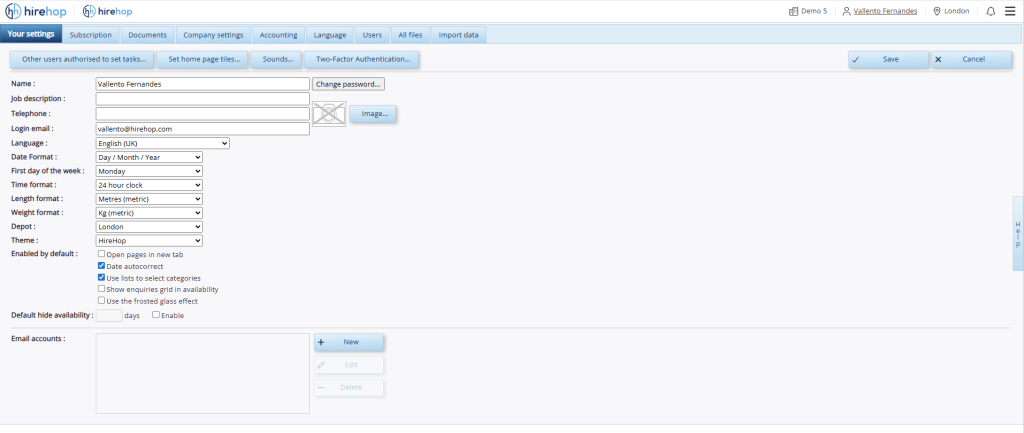
Click the “Two-Factor Authentication…” button located in the top header row of Your Settings.
Step 2: Open the Setup Window
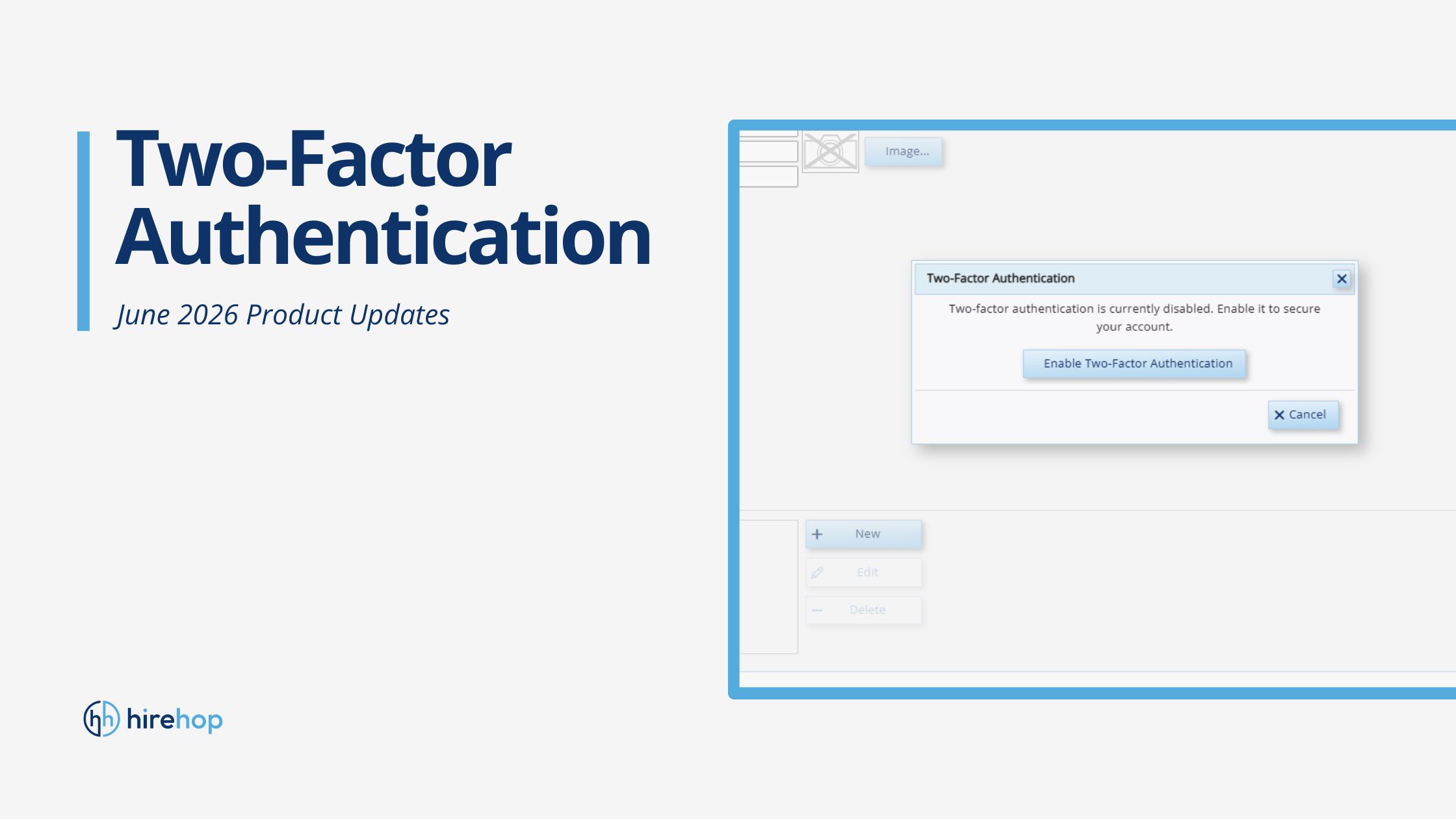
A dedicated setup window will pop up over your settings panel. Click the large Enable Two-Factor Authentication button to begin the sync process.
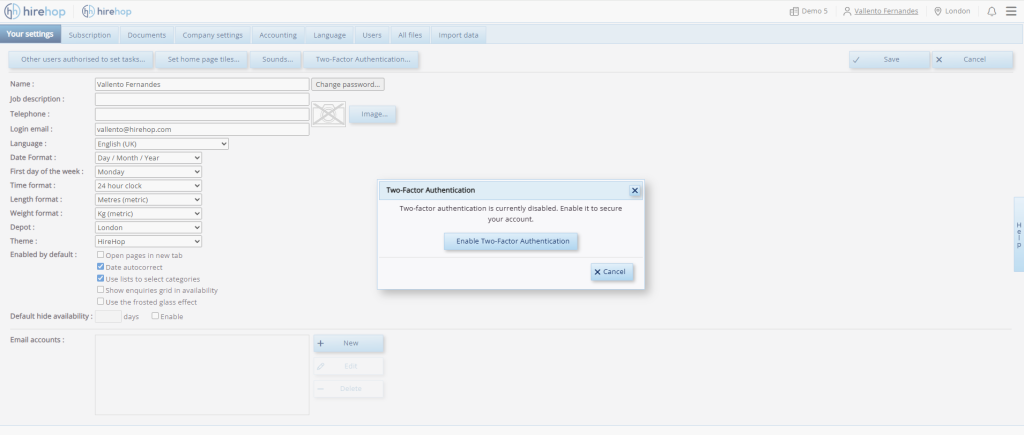
Initialising the 2FA setup wizard within your account.
Step 3: Scan the QR Code
Open your preferred authenticator app on your smartphone and select the option to scan a new QR code. Scan the square code displayed on your HireHop screen (or manually type in the unique alphanumeric key provided below it).
Once your app generates a live, cycling 6-digit verification code, type it into the Enter the 6-digit verification code box and click Save.
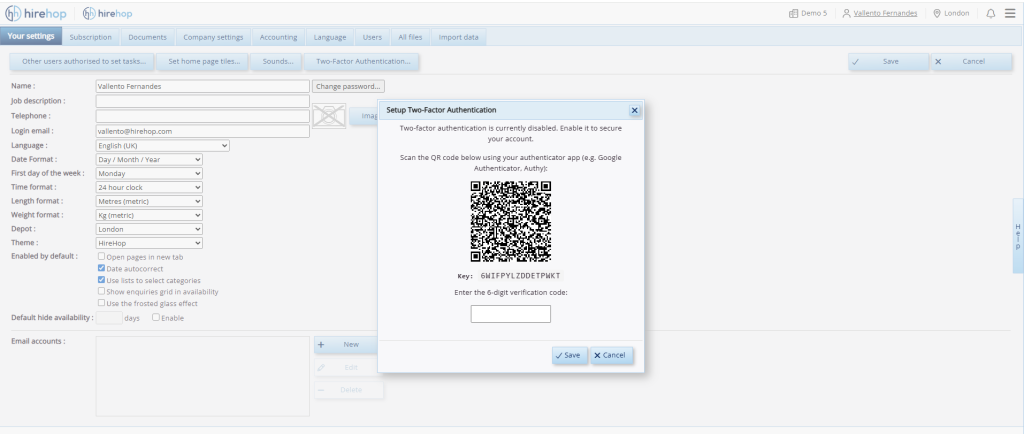
Scanning your unique secure QR code with your smartphone’s authenticator app.
Step 4: Confirmation Success
The system will display a green checkmark confirmation window confirming that 2FA is successfully enabled on your account. Click Close and save your settings.
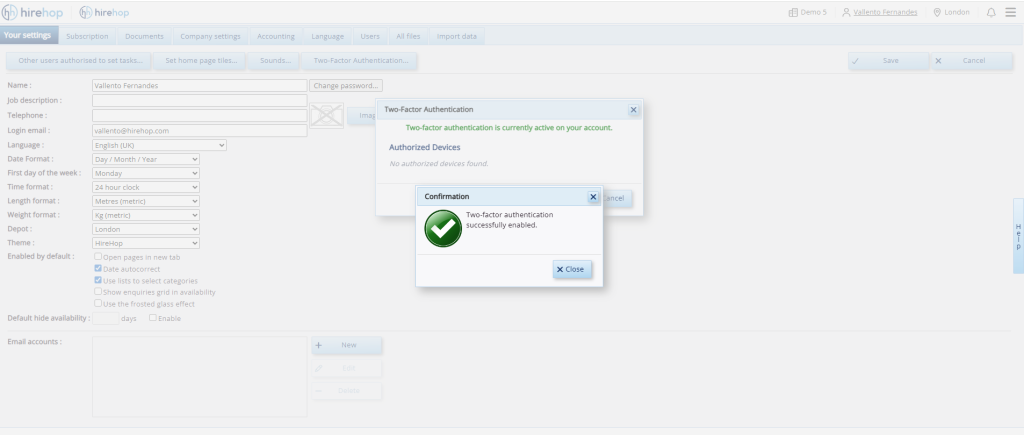
Successful 2FA activation confirmation.
Part 2: Enforced Activation & Subsequent Logins
Depending on how your company account is managed, your interaction with the 2FA setup prompt might vary slightly during login.
Enforced Administrator Setup
If a system Administrator has mandated 2FA across your company account, you will be automatically prompted to configure your security settings upon your very next login. You will see an activation screen requiring you to scan the QR code and link your device before you can access the system. Once this initial setup is complete, your account is fully secure.
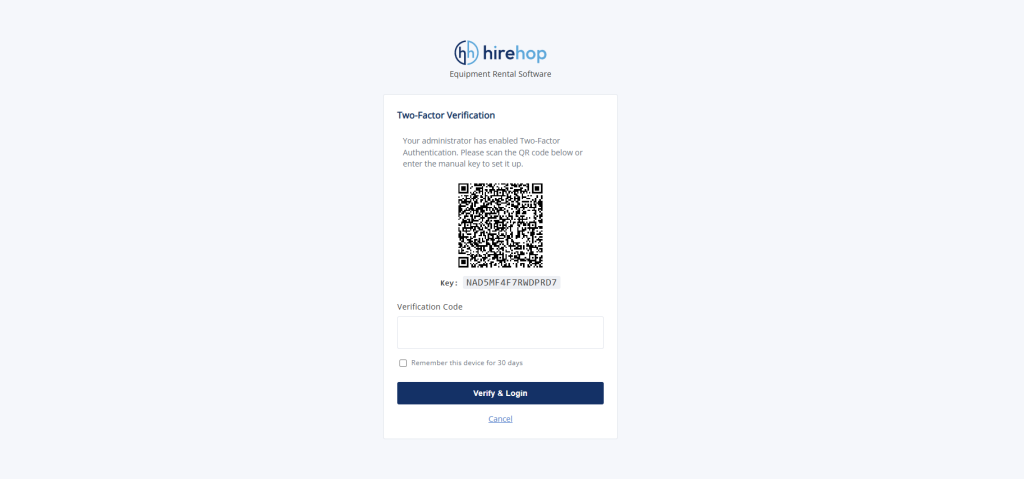
The mandatory setup prompt that appears on a user’s next login after an Administrator enforces 2FA.
Standard Day-to-Day Login
Once 2FA is active on your account (whether you enabled it yourself or your admin enforced it), logging into HireHop from any new device or session will require a quick security check. Simply open your mobile authenticator app, look at the live 6-digit verification code currently cycling for HireHop, type it into the prompt, and select Verify & Login.
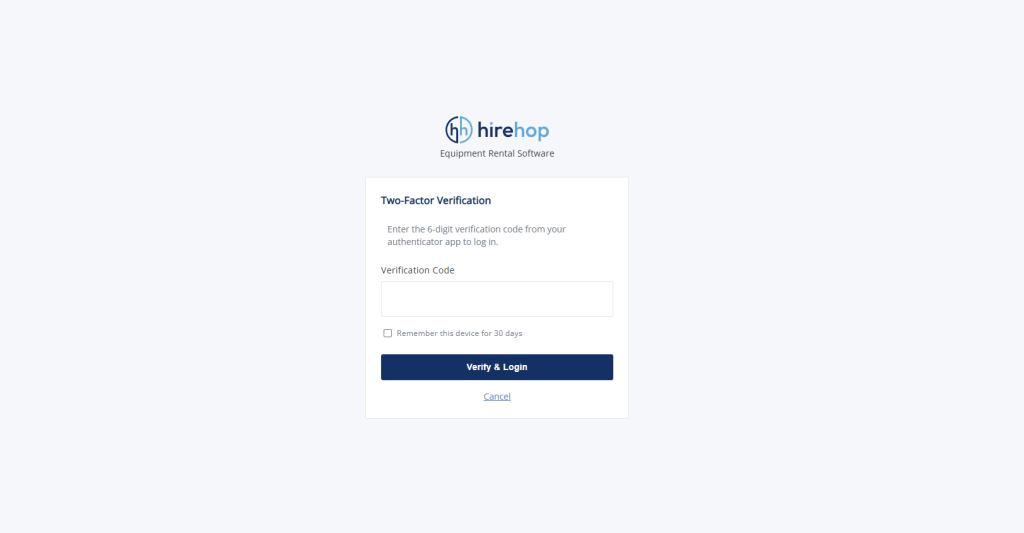
The standard 6-figure verification prompt for all subsequent secure logins.
Part 3: Administrator Controls (Enforcing and Resetting Team 2FA)
If you are a system Administrator, you can monitor the security status of your entire team, mandate 2FA security system-wide, or reset a user’s access if they lose their authentication device.
How to Force Enforce 2FA on a User Account
Head over to the central Users tab within your company settings. Double-click on any team member’s name to edit their global profile permissions.
At the bottom of their profile window, locate the 2FA Status section. Simply check the box next to 2FA Enabled and click Save to mandate that this specific user must use two-factor verification on their next system login.
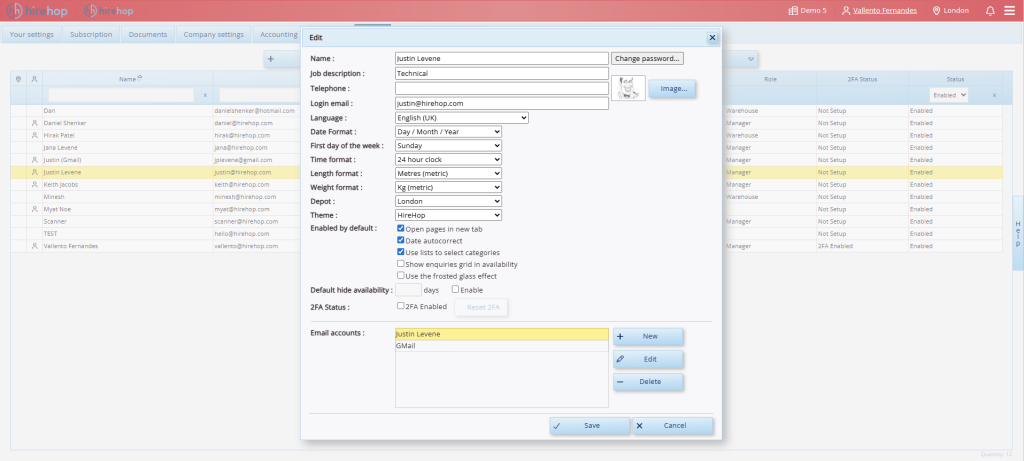
Reviewing a team member’s profile where 2FA has not yet been established.
How to Reset a Locked User Account
If a staff member loses their mobile phone, deletes their authenticator app, or gets locked out of the system, an Administrator can easily restore their access.
Simply open the user’s profile from the central Users grid and click the Reset 2FA button next to the checkbox. This securely wipes their previous device registration, allowing them to log in normally and configure a brand-new device from scratch.
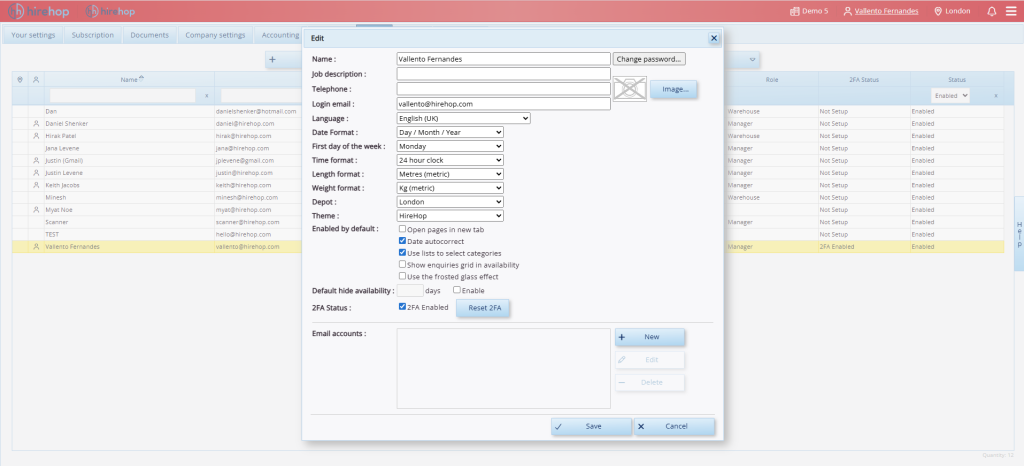
Manually mandating 2FA security or using the “Reset 2FA” tool to unlock a team member’s account.
Secure your rental operations today
Protecting your inventory data and client records is just as critical as maintaining the equipment in your warehouse. Enabling Two-Factor Authentication takes less than two minutes, but it provides essential security for your entire business operation.
If you want to secure your team’s access, you can log into HireHop to enable 2FA within your user settings right now. For larger teams requiring assistance with multi-user permissions, please contact our support team for technical guidance.