Clean Up Your Account Instantly with HireHop’s Unclosed Jobs Report
In a busy rental business, keeping your pipeline perfectly tidy is a constant battle. Once an event finishes and the gear returns to the warehouse, it’s easy for older jobs to remain marked as active. Leaving jobs unclosed can lead to digital clutter — leaving you with active jobs from years ago — and can mask critical financial oversights, like unpaid client invoices.
To streamline your company cleanup and enforce compliance, HireHop has introduced its Unclosed Jobs Report.
This feature allows you to instantly scan historical jobs that should have been finalised, audit outstanding loose ends and clean up your system right inside the report view.
While standard users can only view and close jobs they personally created, system Administrators have global authority to audit and close all jobs across the entire business.
How to Audit and Clean Up Your Active System
Follow our step-by-step guide below to locate the report, audit your unclosed folders and tidy up your active jobs.
Step 1: Locate the Report
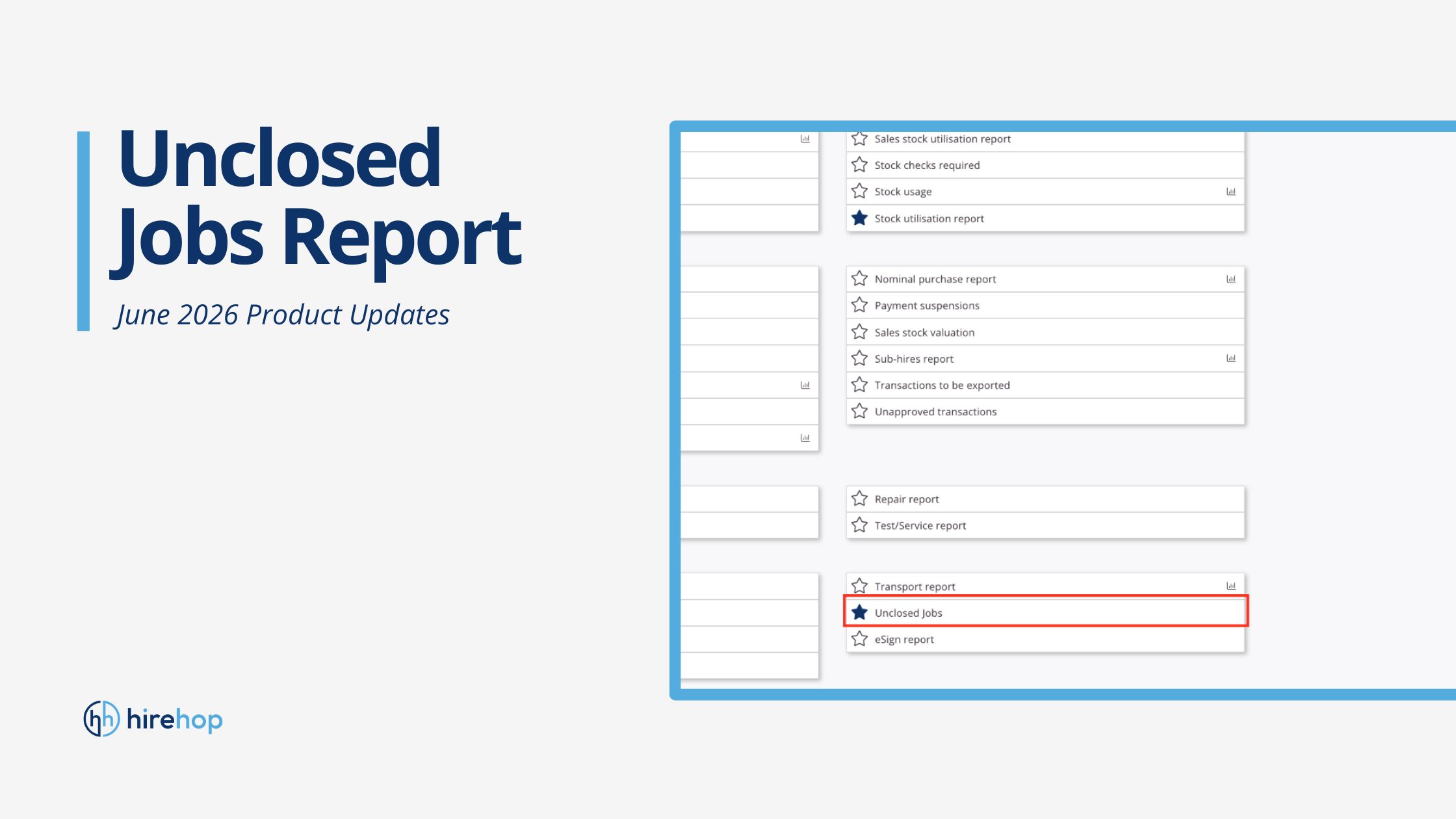
Log into HireHop and head over to the main Reports tab at the top of your screen. Scroll down to the General reporting section at the bottom right, and click on Unclosed Jobs.
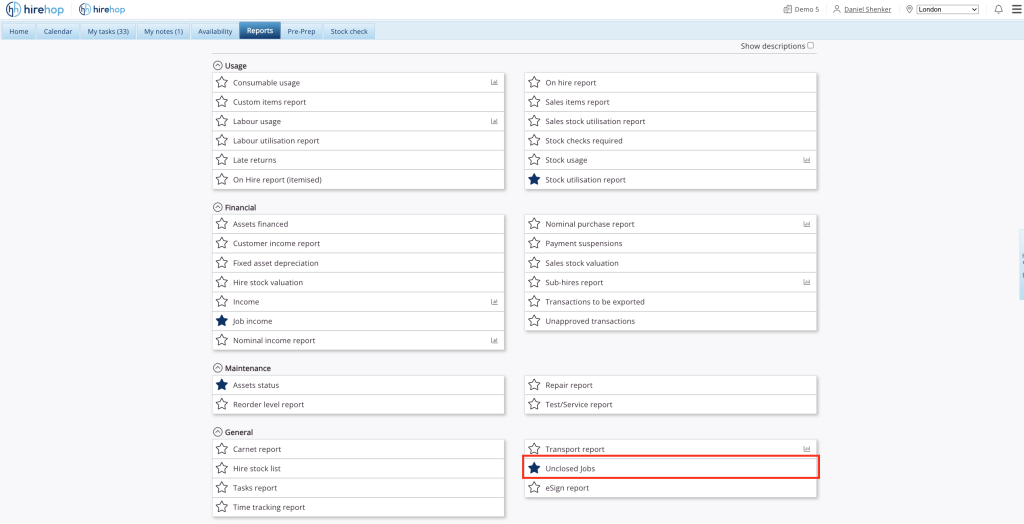
Locating the Unclosed Jobs tool under the General reporting category.
Step 2: Configure Your Cleanup Parameters
Before loading the data, HireHop allows you to filter your search parameters to find exactly what you are looking for.
Using the Unclosed for over dropdown, you can set the system to only look for historical jobs that should have been closed a set amount of time ago (such as 3 months or earlier). This ensures your active, current-season jobs remain wholly unaffected while you target older jobs. You can also filter the report by specific Users, job Statuses or Depots. Once your rules are set, click Refresh.
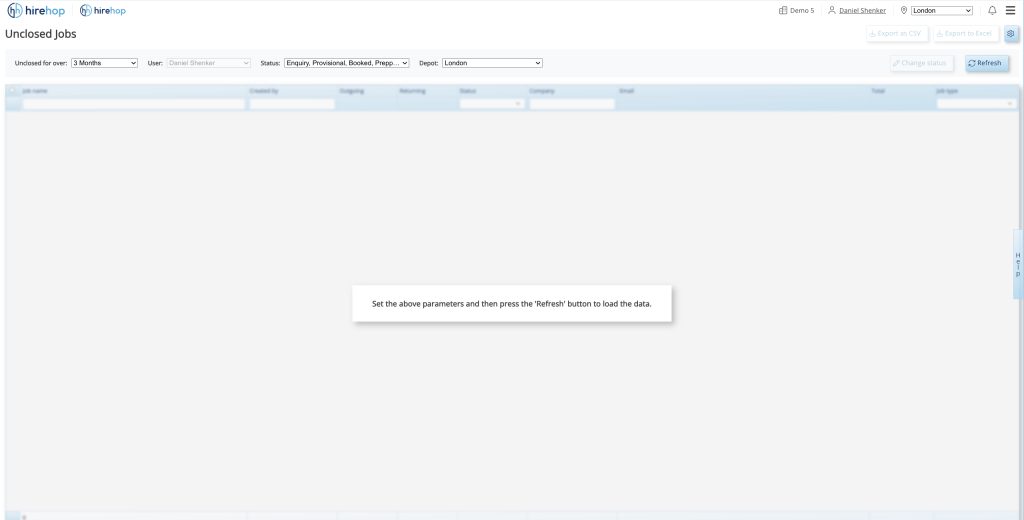
Setting up your time thresholds and user parameters before generating your list.
Step 3: Audit Financial and Operational Loose Ends
When the report loads, you will see a clean list of all matching unclosed jobs.
The Clever Part
Before you check the boxes to close them out, use the columns to scan your financials — specifically checking the Net Invoiced and Uninvoiced balances. If you spot a job with an outstanding Uninvoiced balance, it acts as an immediate alert that something is amiss. You can pause, jump into the job file to chase the unpaid invoice or log the final transaction, and then return to the report to action it.
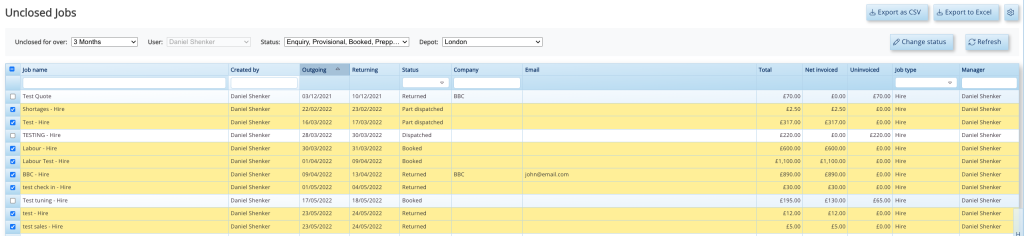
Reviewing the populated data grid to cross-reference unclosed statuses against outstanding financial balances.
Step 4: Batch-Close Actions
Once you have verified that a group of jobs is completely settled, simply check the boxes on the far left of the rows you want to close. Click the Change status button at the top right of the grid, select Completed from the status dropdown window, and click Done.
The system will instantly move all selected jobs to a closed status, removing them from your active pipeline and tidying up your database in a matter of seconds.
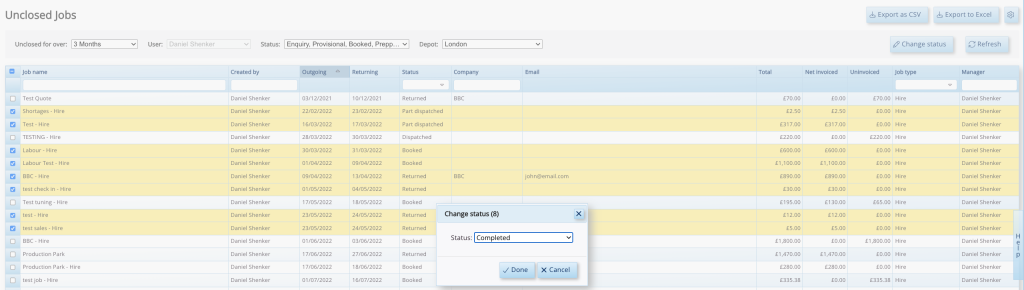
Batch-updating multiple historical jobs to “Completed” to securely close loops instantly.
Keep your pipeline tidy with HireHop
Regularly auditing your historical records helps prevent database clutter and ensures that missing invoices or unfulfilled jobs don’t slip through the cracks. Incorporating the Unclosed Jobs Report into your routine monthly or seasonal cleanup keeps your operational data pristine.
The Unclosed Jobs Report is live and available to use now. If you want to tidy up your company pipeline, you can log into your HireHop account to view your active jobs. For larger teams needing assistance with administrative access permissions or user roles, please reach out to our support desk for a chat with the team.