Enforce Consistency with HireHop’s Job Checklist
In a fast-paced rental or event business, remembering every operational step across different types of jobs can be a challenge. Forgetting to attach a signed risk assessment to an corporate event file or missing a specific custom dispatch requirement on a trade sale can slow down your workflows and cause unnecessary headaches.
To give your team an automated digital safety net, we have introduced our new Job Checklists feature.
Built directly into your core configuration settings, this new feature allows you to create global, standardised checklists that enforce accountability, protect your quality control and streamline warehouse and office throughput.
Instead of forcing a one-size-fits-all list on your staff, you can dynamically filter tasks by job type (such as Event, Hire, or Sales) or enforce non-negotiable steps as mandatory, ensuring your team only ever sees the exact procedures that matter to the task at hand.
How to Set Up and Use Your Job Checklist
Configuring your global safeguards takes less than five minutes, but the precision it brings to your downstream workflows is permanent. Follow our simple step-by-step guide below to deploy your job checklist across your active operation.
Step 1: Build your job checklist template & choose your question types
Head over to Company Settings and locate the new Checklist tab. This is your central repository where you can begin listing all the operational questions, safety checks and tasks you want your team to complete for each job.
To make your lists incredibly precise, HireHop gives you complete control over the format of each question. Within the setup window, you can select from various response types:
- Yes or No: Generates a clean, satisfying tick-box for quick sign-offs.
- Text / Date: Creates an open text or date field, perfect for notes, gate codes or vehicle registrations.
- Select / Multi Select: Provides a structured list of set dropdown options for your team to choose from.
The Clever Part
Right inside this same configuration window, you can immediately filter the question by Job Type (such as Event, Dry Hire, or Rental). If a question only applies to a Dry Hire job, it will only appear on those specific jobs. If it applies to every single type of job in your business, simply select ~All~ to apply it to all jobs, system-wide.

Accessing your checklist configuration template within Company Settings.
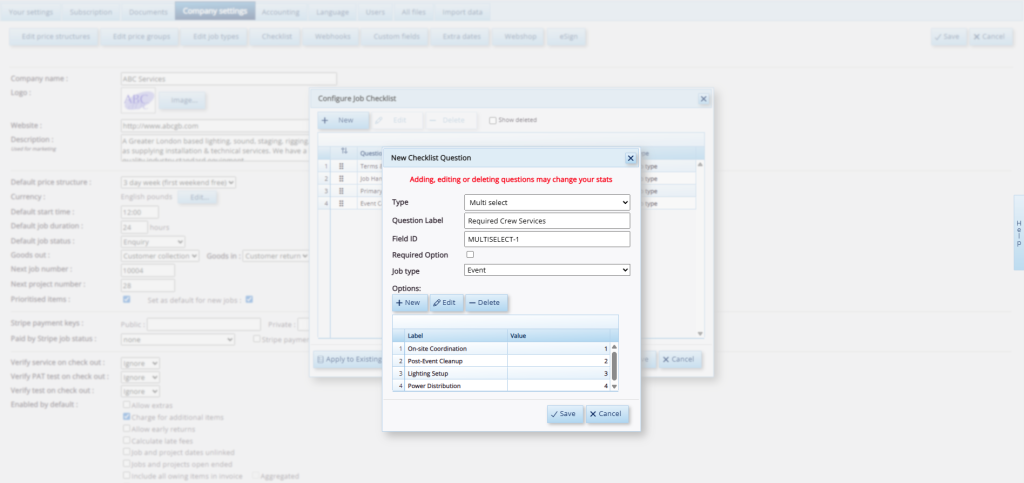
Configuring custom question types and instantly targeting them to specific job types.
Step 2: Enforce Mandatory Safeguards
For your non-negotiable procedures, simply tick the Required Option box when creating or editing your question.
This transforms the task from a basic reminder into a strict procedural safeguard, guaranteeing that your highest-stakes operational rules are followed perfectly every single time.
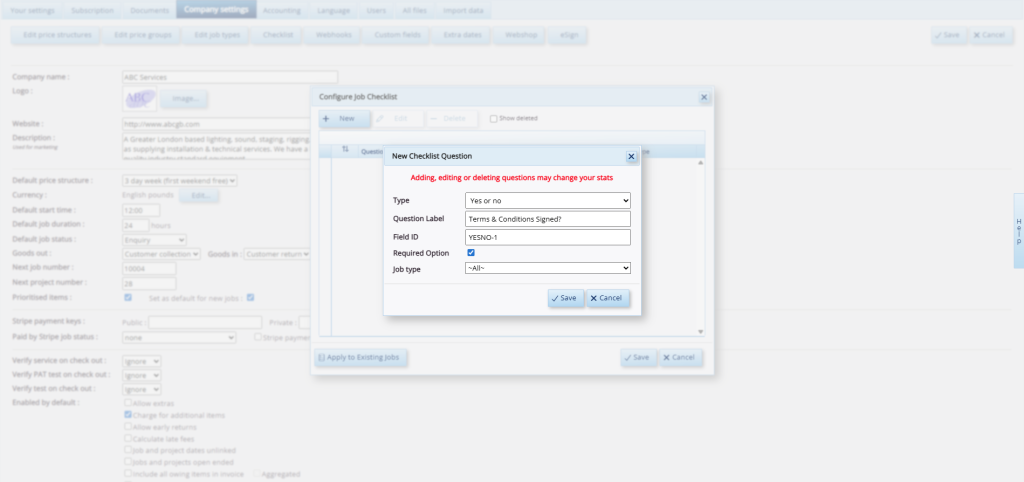
Ticking the “Required Option” box to enforce mandatory accountability on critical tasks.
Step 3: Custom System-Wide Deployment
Once you save your changes, your checklist automatically applies to all new jobs moving forward.
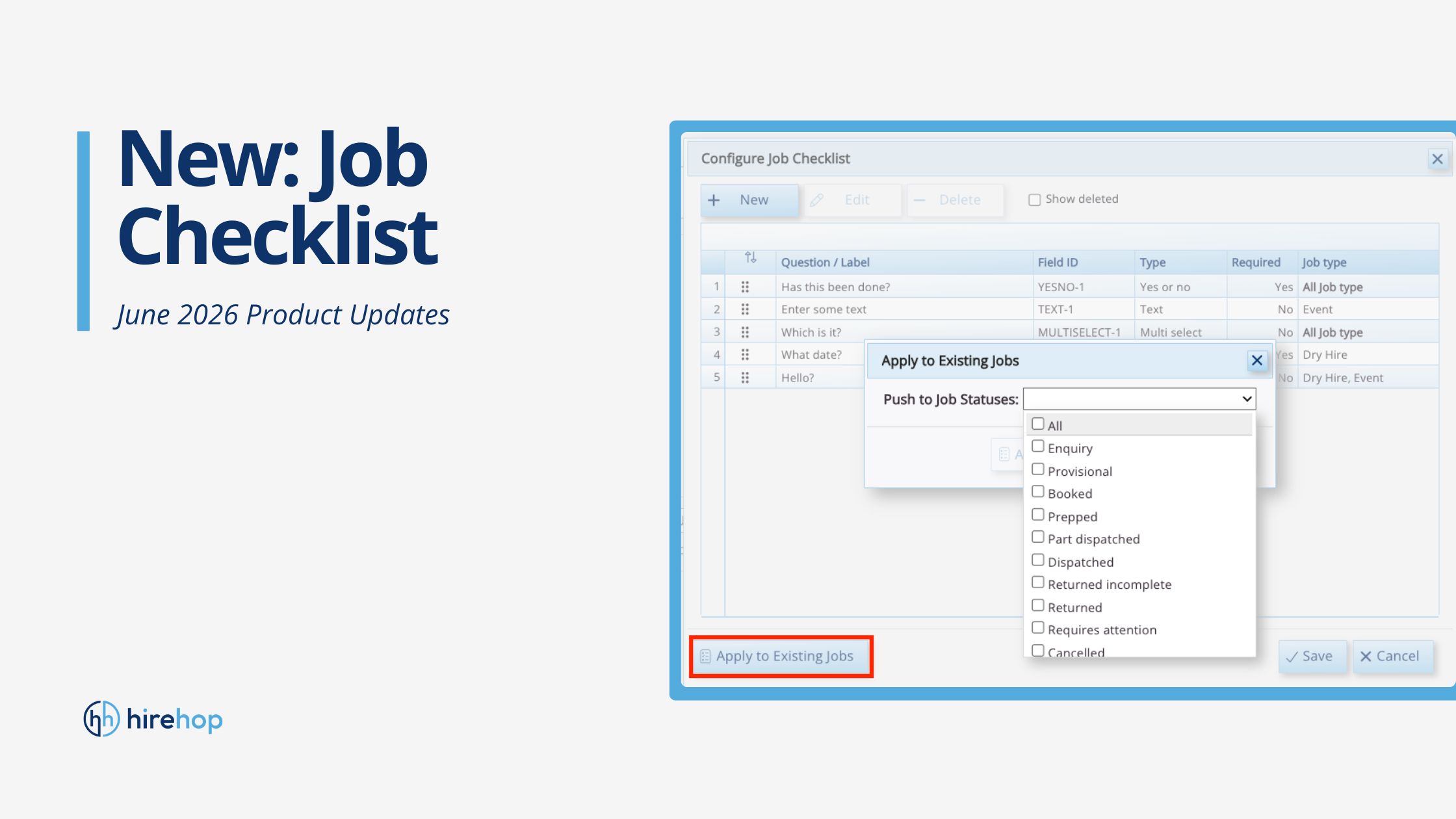
Pro-Tip: If you’ve updated an internal company policy and need active jobs to reflect the change immediately, click the Apply to Existing Jobs button at the bottom of the window. HireHop allows you to choose exactly which active workflows to update by selecting specific job statuses — such as pushing the new rules only to jobs marked as Booked, Prepped or Dispatched — updating your pipeline in a fraction of a second.
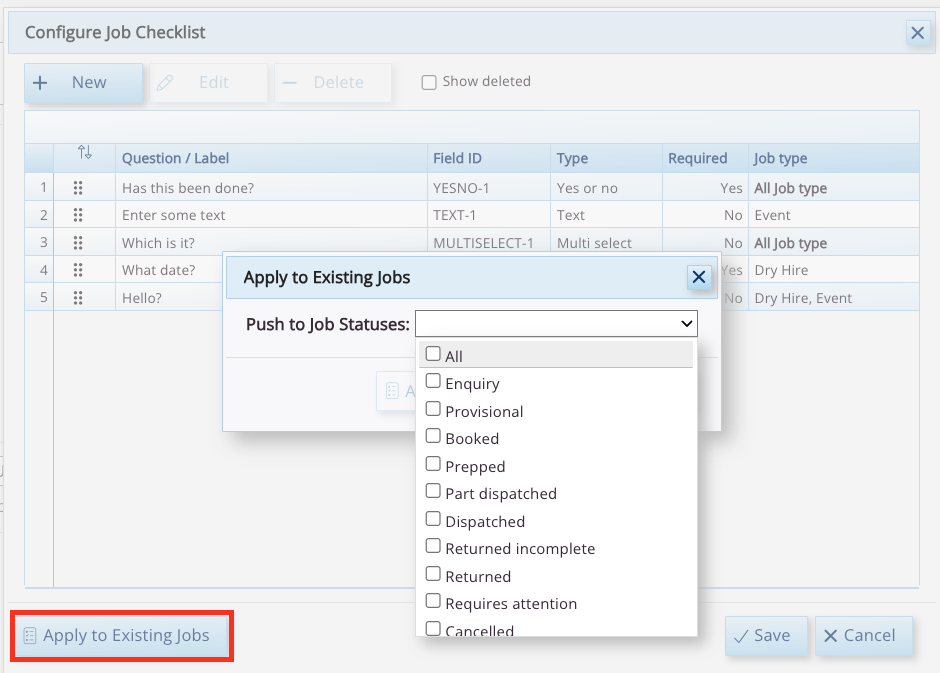
Using the retroactive deployment tool to push new checklist rules to all of your existing jobs.
Track Operational Progress at a Glance
Once your job checklist is active, HireHop transforms daily monitoring from a guessing game into a complete visual workflow. Instead of chasing team members for status updates, managers can track progress in real time across two distinct views.
1. Within the Individual Job File
When a team member opens a job, a dedicated checklist module sits clearly at the bottom of the screen. Clicking it opens a live modal tracking window. As staff tick boxes, log text notes or pick multi-select dropdown options, HireHop automatically calculates the workload and moves a vibrant green progress bar from 0% to 100%.
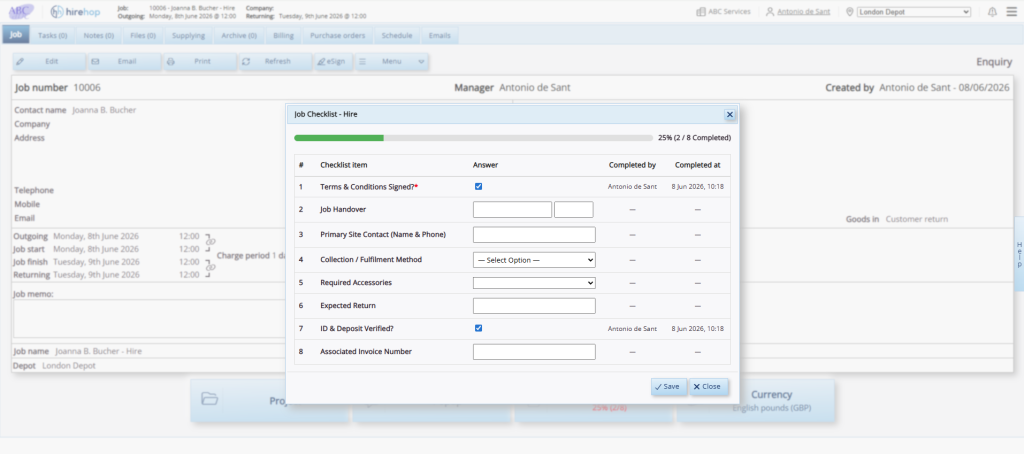
Tracking live, incomplete progress (25%) inside an active hire job.
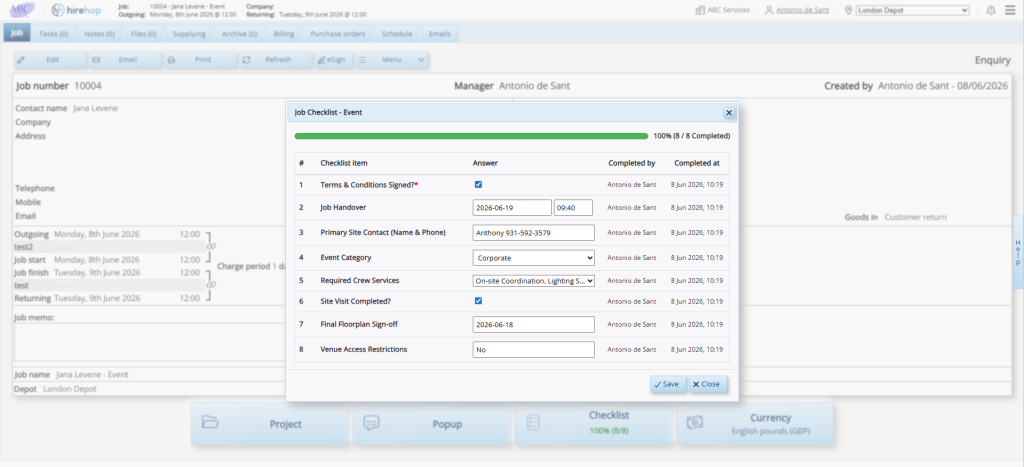
A fully completed, 100% logged operational checklist ready for sign-off.
2. Across Your Entire Pipeline
You don’t have to waste time clicking into individual jobs to check on your team’s throughput. On your main job list board, HireHop features a dedicated Checklist column on the far right of the grid.
This column pulls the real-time completion data from every single active job simultaneously, allowing operations directors to audit warehouse and office readiness at a single glance.
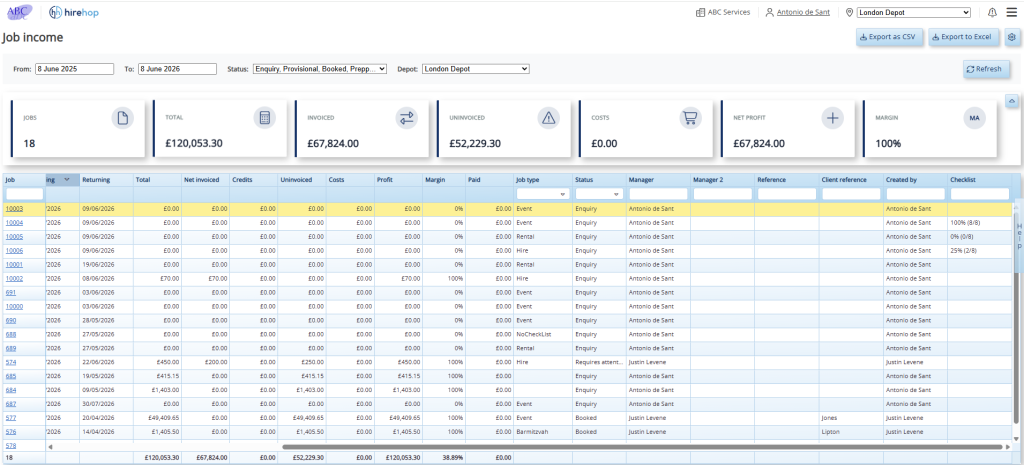
Monitoring team throughput across your entire operation via the checklist column on the main jobs list.
Simple, Automated Accountability
By automating your internal safeguards with HireHop’s Job Checklist, you can ensure your office team, logistics crew and warehouse managers stay perfectly aligned.
You protect your business from costly oversights, satisfy your insurers with immaculate procedural logging and track your daily operational progress at a single glance, all without adding an extra second of administrative fluff to your day.